¶ Quick Start
¶ Product Overview
ACCELaser Assistant is a desktop client that works as an auxiliary configuration tool. Through ACCELaser Assistant, you get a more convenient and seamless workflow that enables USB network configuration and quick viewing of device information.
¶ Download & Installation
Please download ACCELaser Assistant from the official ACCELaser website.
Official download link:
Mac OS (Apple Silicon)
https://assets.accelaser.com/assets/assistant-dmg-arm64/ACCELaser-Assistant-latest-arm64.dmg
Mac OS (Intel)
https://assets.accelaser.com/assets/assistant-dmg-x64/ACCELaser-Assistant-latest-x64.dmg
Windows:
https://assets.accelaser.com/assets/assistant-exe-x64/ACCELaser-Assistant-Setup-latest-x64.exe
¶ System Requirements
Windows 10 or later;
8GB RAM recommended; at least 4GB-20GB or more of available hard drive space.
¶ First-Time Use: Adding a Device
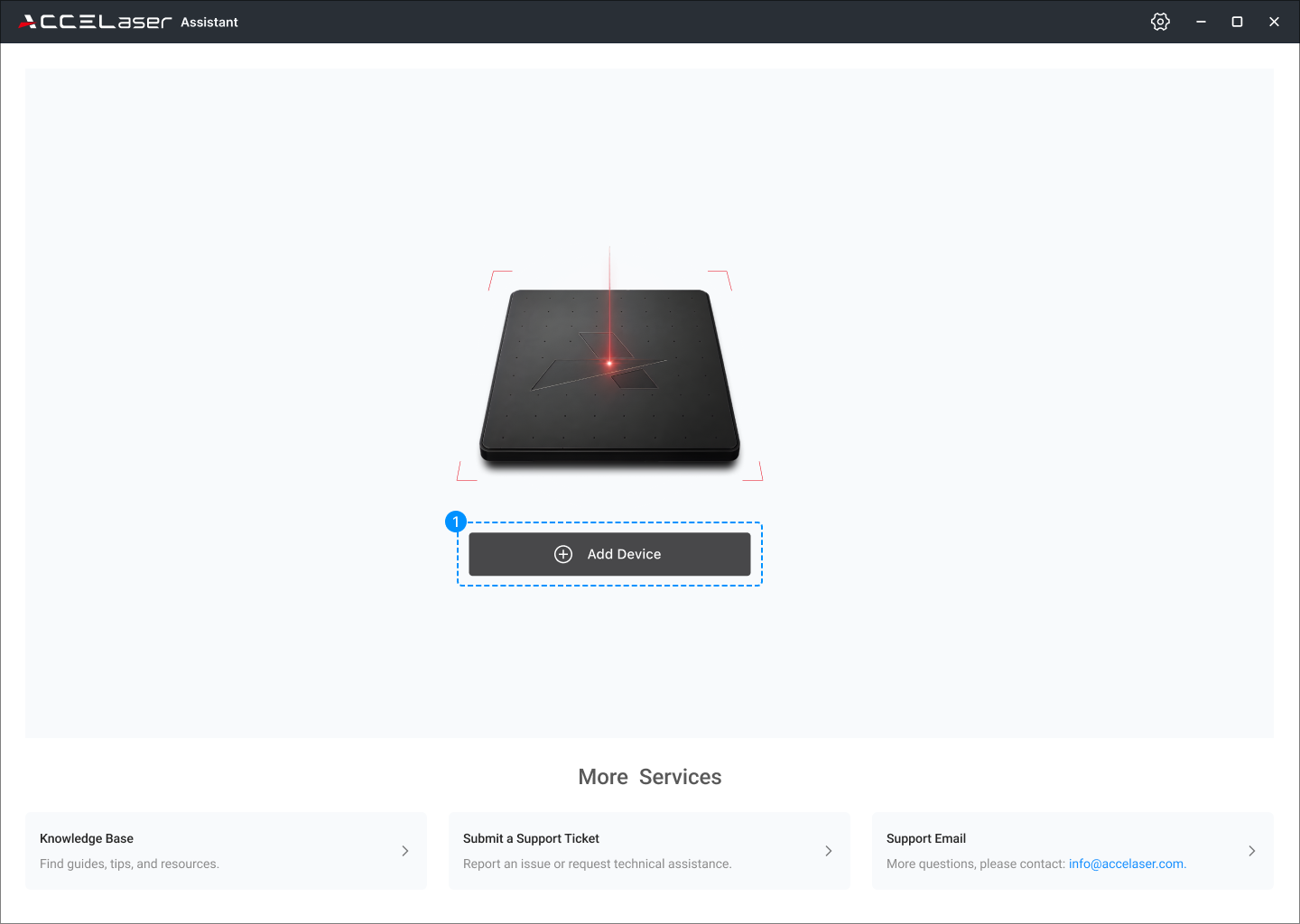
Click the "Add Device" button to add an HD1. ACCELaser Assistant offers three ways to add a device:
¶ 1. USB Network Configuration
-
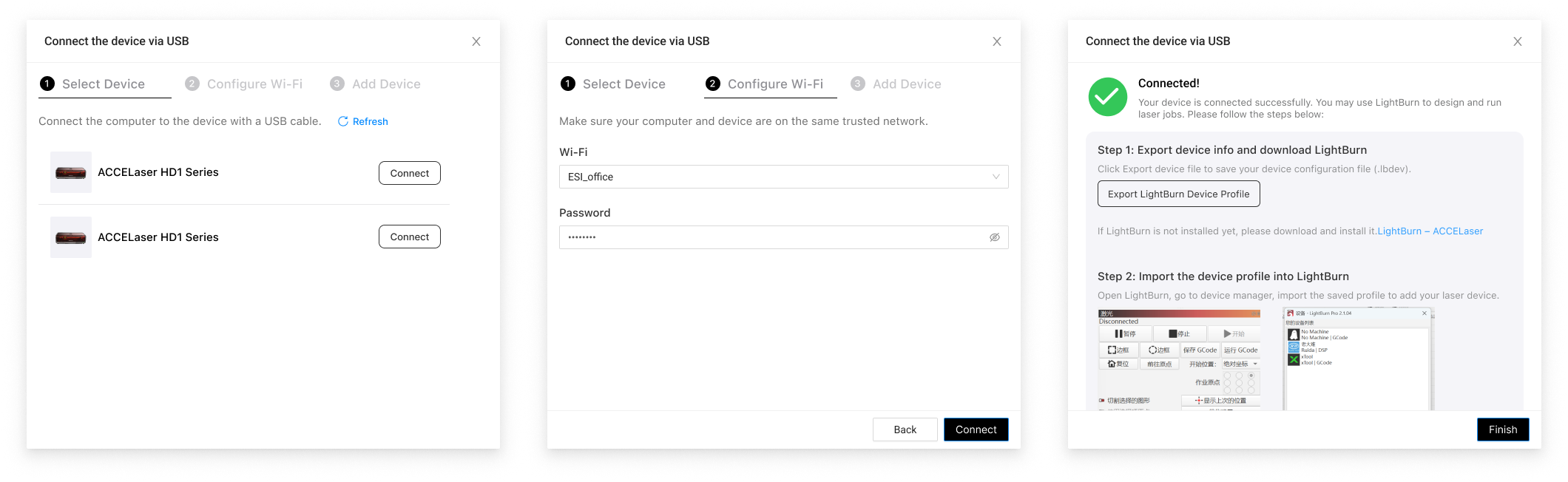
Connect the device to your computer with a USB cable.
-
Open ACCELaser Assistant on your computer, click the "Add Device" button, and select "Connect to a New Device".
-
In the device list, select the device you want to configure.
-
Select or enter your Wi-Fi name and password to complete the device network configuration.
⚠️
- During network configuration, make sure your device is connected to the computer via USB cable.
- The computer and the device must be on the same network.
- Keep the device close to the router to ensure good signal quality.
- Make sure the Wi-Fi name and password are correct.
¶ 2. Add via Local Area Network
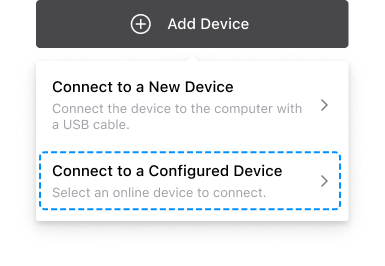
- On the home page, click "Add Device" and select "Connect to a Configured Device".
2. In the device list, select an online device on the same subnet and establish a connection.
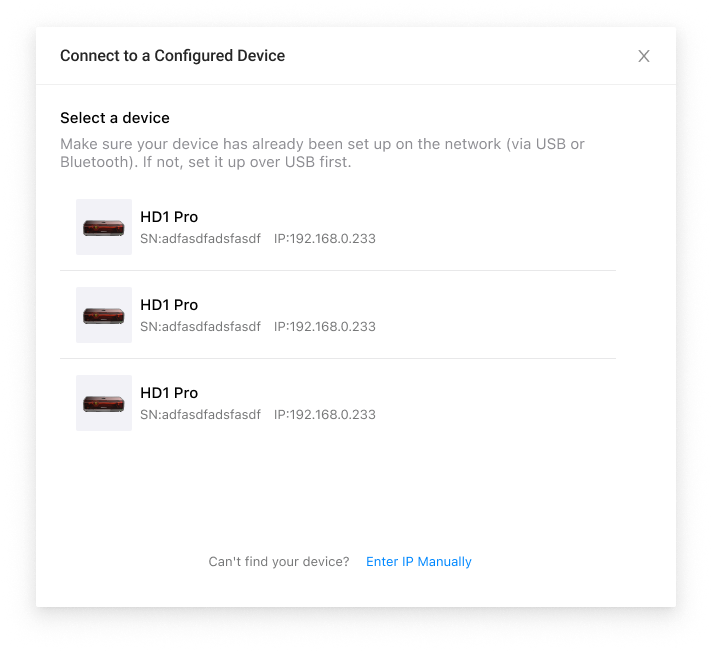
3. Once the device is bound successfully, you can view its status and job progress in real time.
⚠️
- Before adding a device via LAN, make sure the device has already been configured. If it has not been configured yet, you can either:
- Use ACCELaser Assistant to configure the network via USB.
- Use ACCELaser Handy to configure the network via Bluetooth.
¶ 3. Add by IP Address
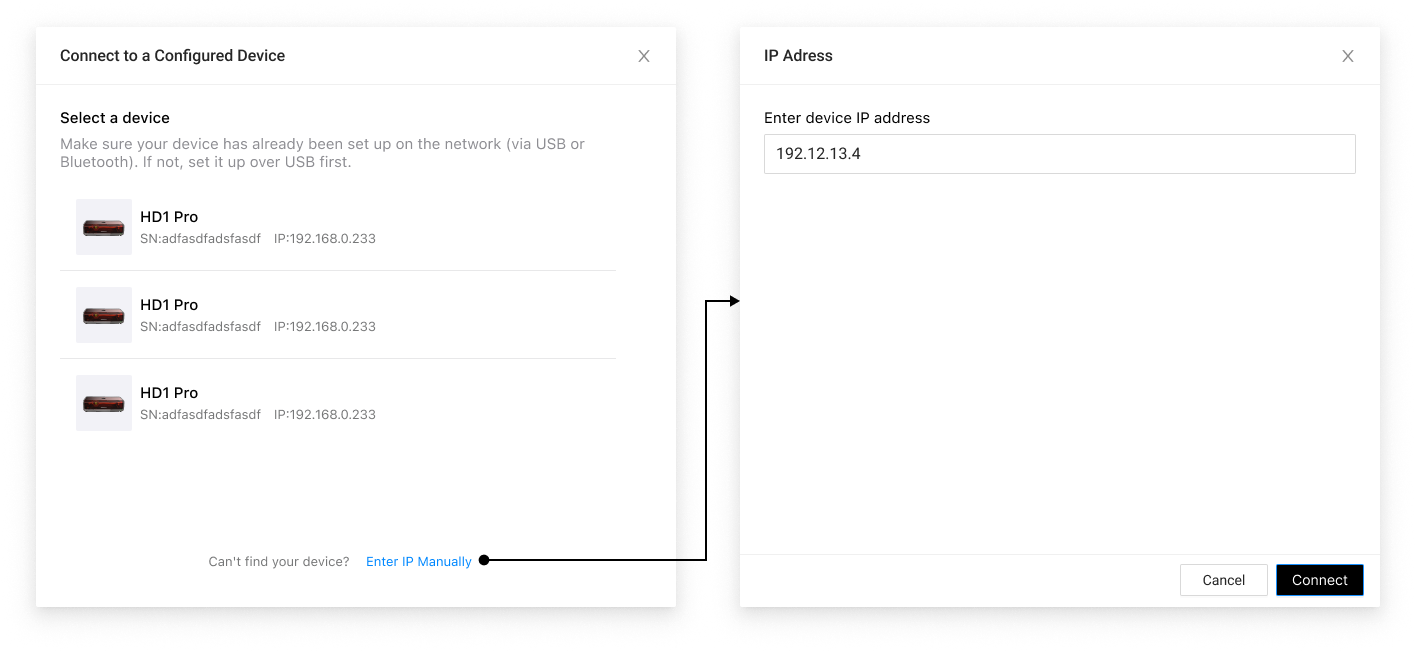
On the home page, click "Add Device", select "Connect to a Configured Device", and then select "Enter IP manually".
Enter the device's IP address manually in the input field and confirm.
Once the device is bound successfully, you can view its status and job progress in real time.
⚠️
- Before adding a device by IP, make sure the device has already been configured. If not, configure it via USB using ACCELaser Assistant first.
- You can find the device's IP address in the device settings and note it down.
¶ Page Overview
¶ Home Page
View the online/offline and processing status of added devices, add devices, and change software settings.
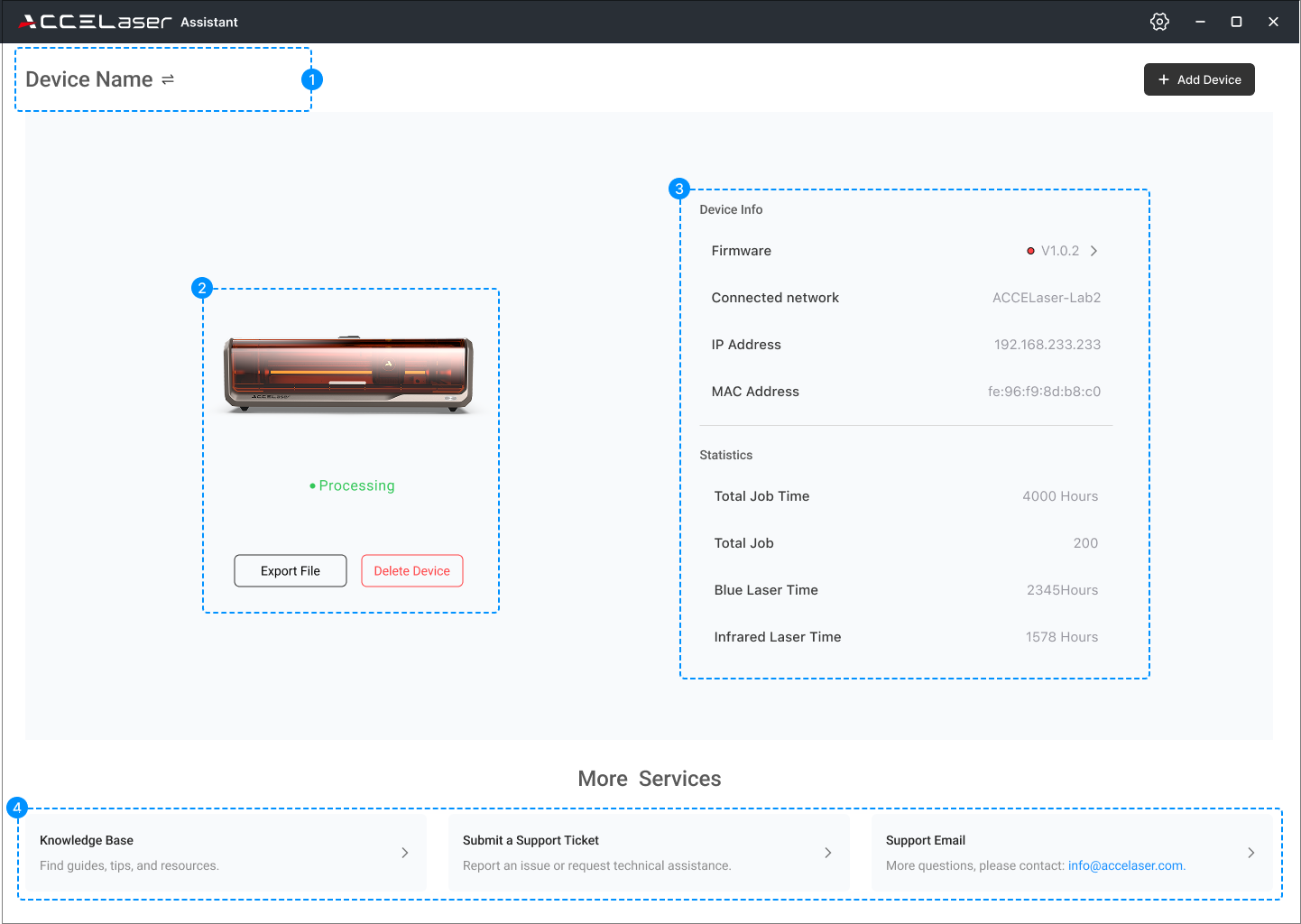
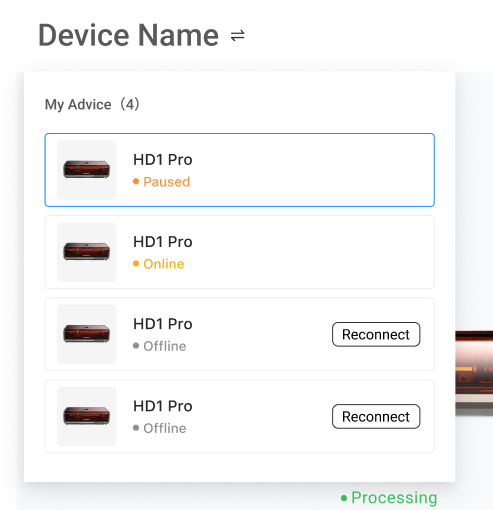
- Click to switch between devices.
-
View device status, export device files, and delete devices.
-
View the device name, connected network, IP address, working time, and other information; firmware upgrades can also be performed here.
-
Access official help documentation and submit feedback.
After connecting, we recommend reading 📄Device Setup in LightBurn to complete the machine's processing configuration.